What Is a CPU Bottleneck? (Complete 2026 Guide)
You just built a new PC, installed your favorite game, and something still feels off. The FPS is lower than it should be. The gameplay stutters in busy scenes. Your brand-new GPU barely touches 60% usage. Before you blame the graphics card, there is a good chance a CPU bottleneck is holding your system back — and most gamers never think to check it first.
This performance issue occurs when your processor cannot keep up with the demands of your graphics card. As a result, the GPU sits idle while the CPU struggles to process game data, leading to lower FPS, inconsistent frame times, and reduced overall gaming performance.
Looking to fix it? Follow our free step-by-step CPU bottleneck fix guide.
What Is a CPU Bottleneck?
A CPU bottleneck happens when your processor cannot keep up with the demands of your GPU or the software you are running. Think of it like a busy highway merging into a single lane. All the traffic slows down because one lane cannot handle the load, no matter how fast the cars are.
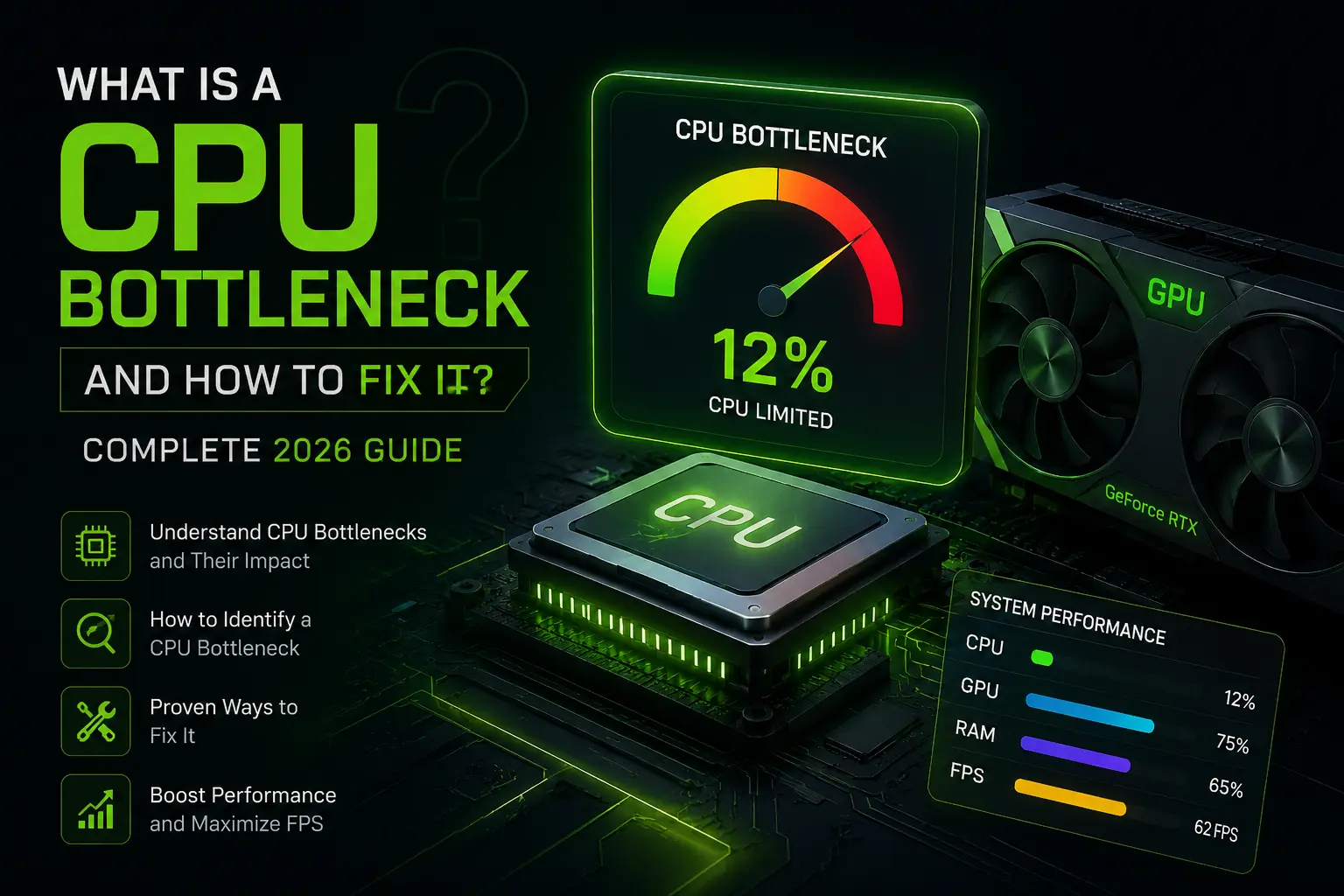
In a PC, the CPU handles game logic, physics, AI, and draw calls. It tells the GPU what to render frame by frame. When the processor falls behind, the GPU sits idle waiting for instructions. The result is low GPU usage, frame drops, and the kind of stuttering that makes your system feel broken — even when you just spent money upgrading it.
A CPU bottleneck is mostly a frame-time consistency problem, not just a low FPS issue. It can happen even when only one or two CPU threads hit their limit, while the total CPU usage still looks moderate on your screen. That is why so many people misread the situation. The average CPU usage looks fine in Task Manager, but individual cores are pinned at 100% and quietly ruining your experience.
Signs You Have a CPU Bottleneck
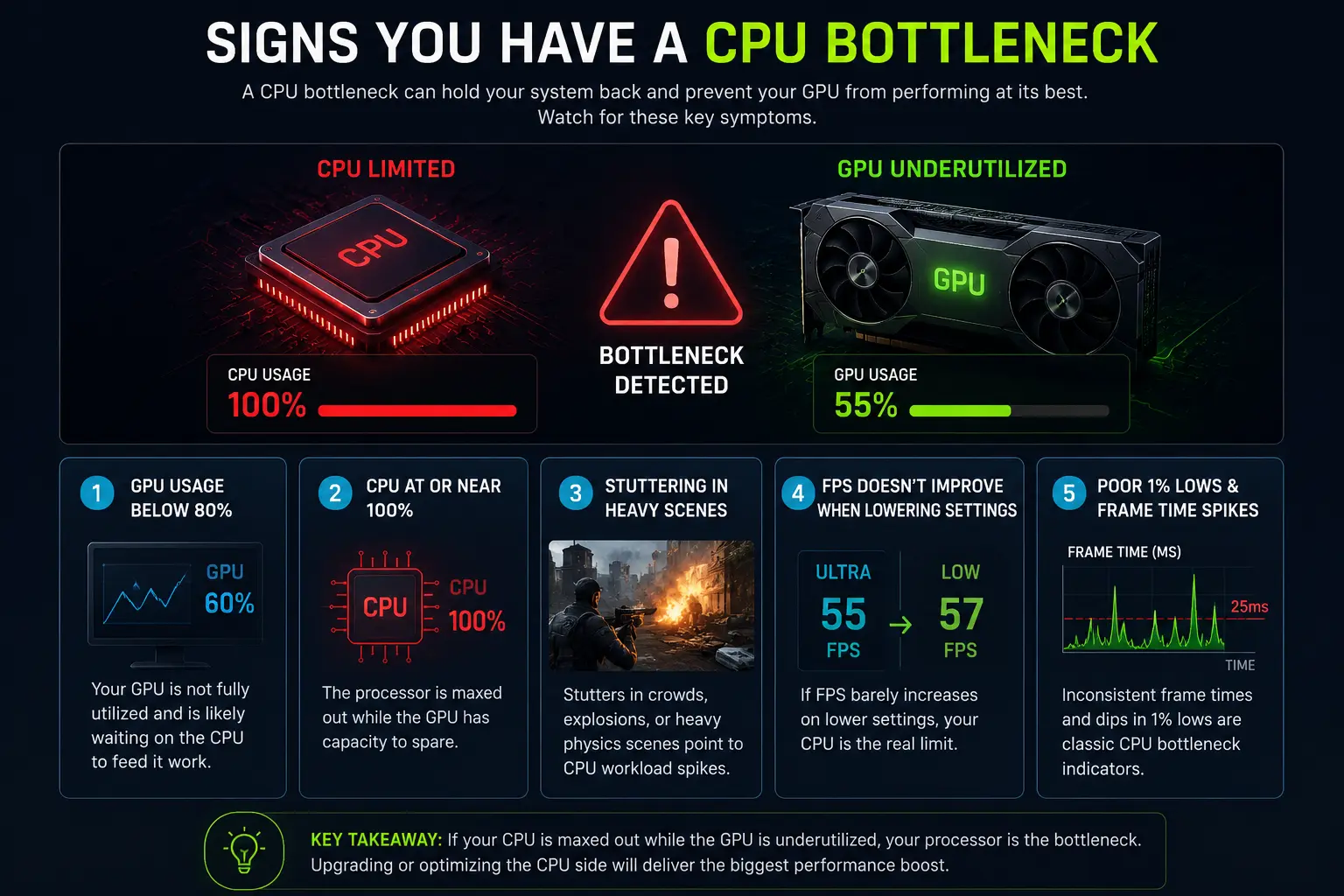
A CPU bottleneck is not always obvious. Many gamers assume their graphics card is the problem when performance drops, but the processor is often the real limitation. If your CPU cannot keep up with the workload, it can reduce FPS, cause stuttering, and prevent your GPU from reaching its full potential. Here is what to look for:
Low GPU Usage During Gameplay
If your graphics card usage stays below 80% while a game is running poorly, your GPU may be waiting for the CPU to process game data. In demanding scenes, a powerful graphics card should typically operate near full capacity. Consistently low GPU usage often indicates a processor-related performance bottleneck.
CPU Usage Near 100%
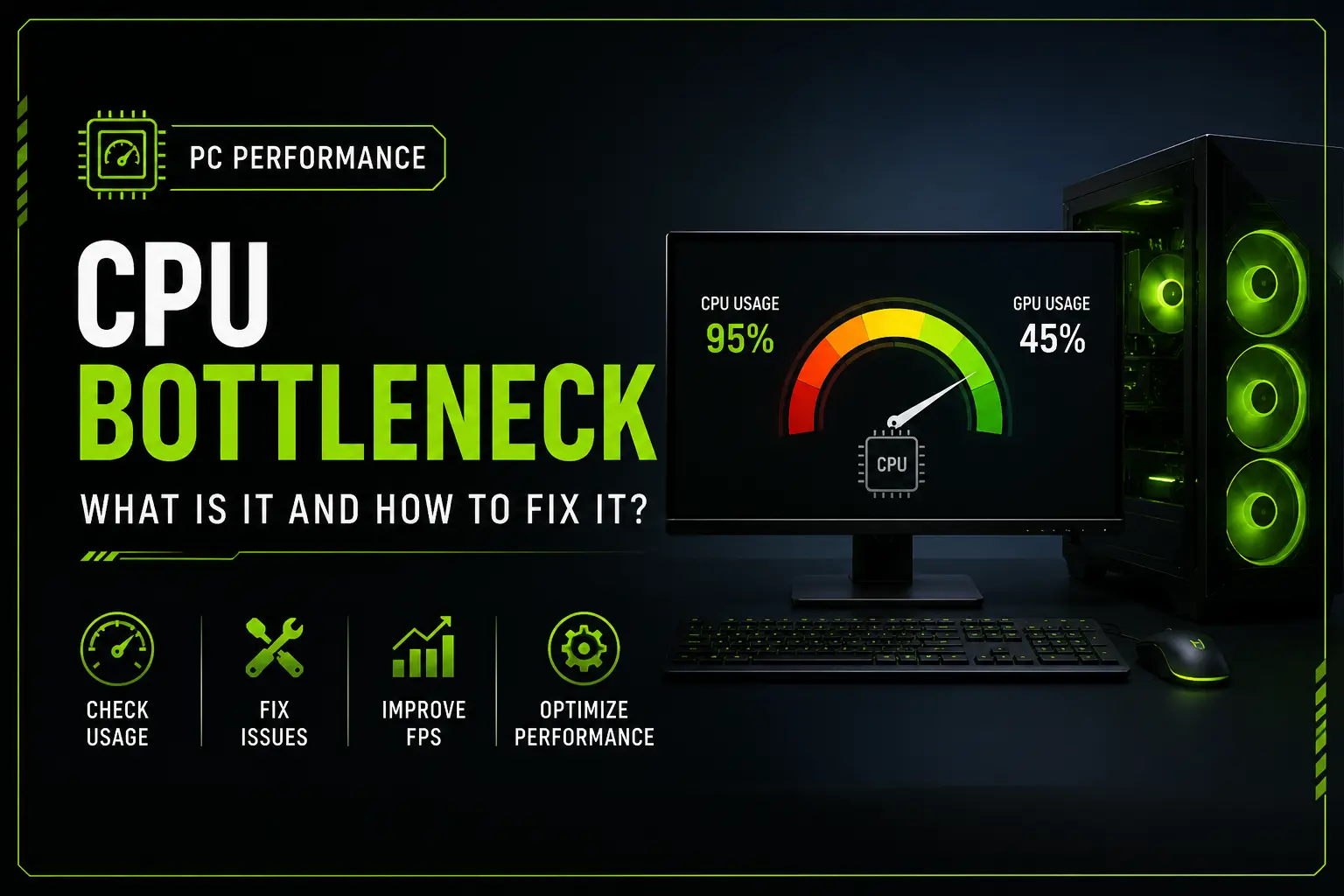
One of the clearest signs of a processor limitation is when processor usage remains close to 100% while GPU utilization stays significantly lower. This means the CPU has reached its maximum workload and can no longer provide data fast enough for the graphics card.
Stuttering in Complex Scenes
Frequent stuttering during large battles, crowded cities, explosions, or physics-heavy moments usually points to CPU limitations. These scenarios require the processor to handle AI calculations, physics simulations, and game logic simultaneously, increasing CPU load significantly.
FPS Does Not Increase When Lowering Graphics Settings
Reducing graphics settings should normally improve frame rates because it reduces the workload on the GPU. If you switch from Ultra to Low settings and notice little or no FPS improvement, the processor is likely limiting performance rather than the graphics card.
Poor 1% Low FPS and Frame Time Spikes
This type of performance limitation often affects frame consistency more than average FPS. You may see acceptable average frame rates but still experience sudden stutters caused by frame time spikes. Poor 1% low FPS results are a strong indicator that the processor is struggling to keep up with game demands.
Common Causes of a CPU Bottleneck
Understanding the root causes of CPU performance issues helps you make smarter upgrade decisions and avoid wasting money on unnecessary hardware.
Mismatched CPU and GPU
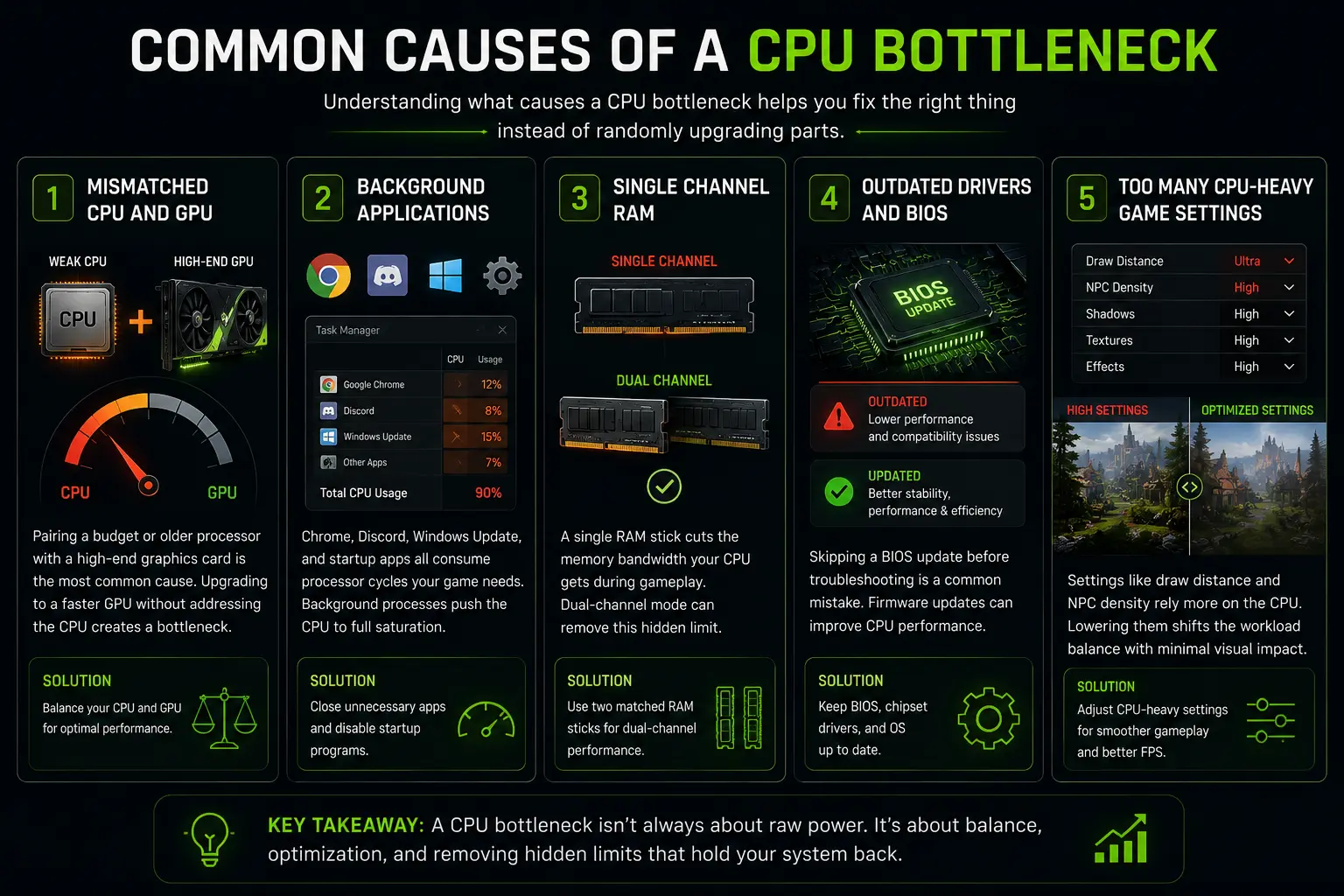
Pairing a budget or older processor with a high-end graphics card is the most common cause. Upgrading to a faster GPU without addressing the CPU is ironically the most common way builders create a CPU bottleneck in the first place.
Background applications are stealing CPU resources
Chrome, Discord, Windows Update, and startup apps all consume processor cycles your game needs. Background processes take more than people realize — that stolen headroom pushes the processor into full saturation with the same hardware
Running RAM in single channel mode
A single RAM stick cuts the memory bandwidth your CPU gets during gameplay significantly. Installing two matched sticks in dual-channel mode can remove this hidden limit.
Outdated drivers and BIOS
Skipping a BIOS update before troubleshooting a performance drop is one of the most common mistakes. Microcode scheduling improvements in firmware updates can make a real difference to CPU performance without touching hardware.
Too many CPU-heavy game settings
Draw distance and NPC density settings pull from processor load, not GPU work. Reducing them shifts the workload balance without affecting visual quality much.
How to Check If You Have a CPU Bottleneck
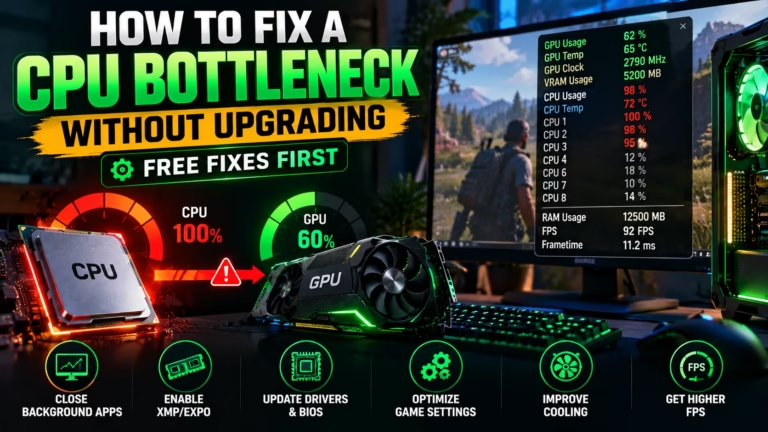
Before changing anything, get real data. Open Microsoft Task Manager or MSI Afterburner while playing your game and monitor CPU and GPU usage simultaneously during the most demanding scenes.
If CPU usage is consistently near 100% while GPU usage stays below 80%, you have confirmed a CPU bottleneck. If both are high, you have a different situation. If only GPU usage is near 100%, that is a GPU bottleneck — a separate problem.
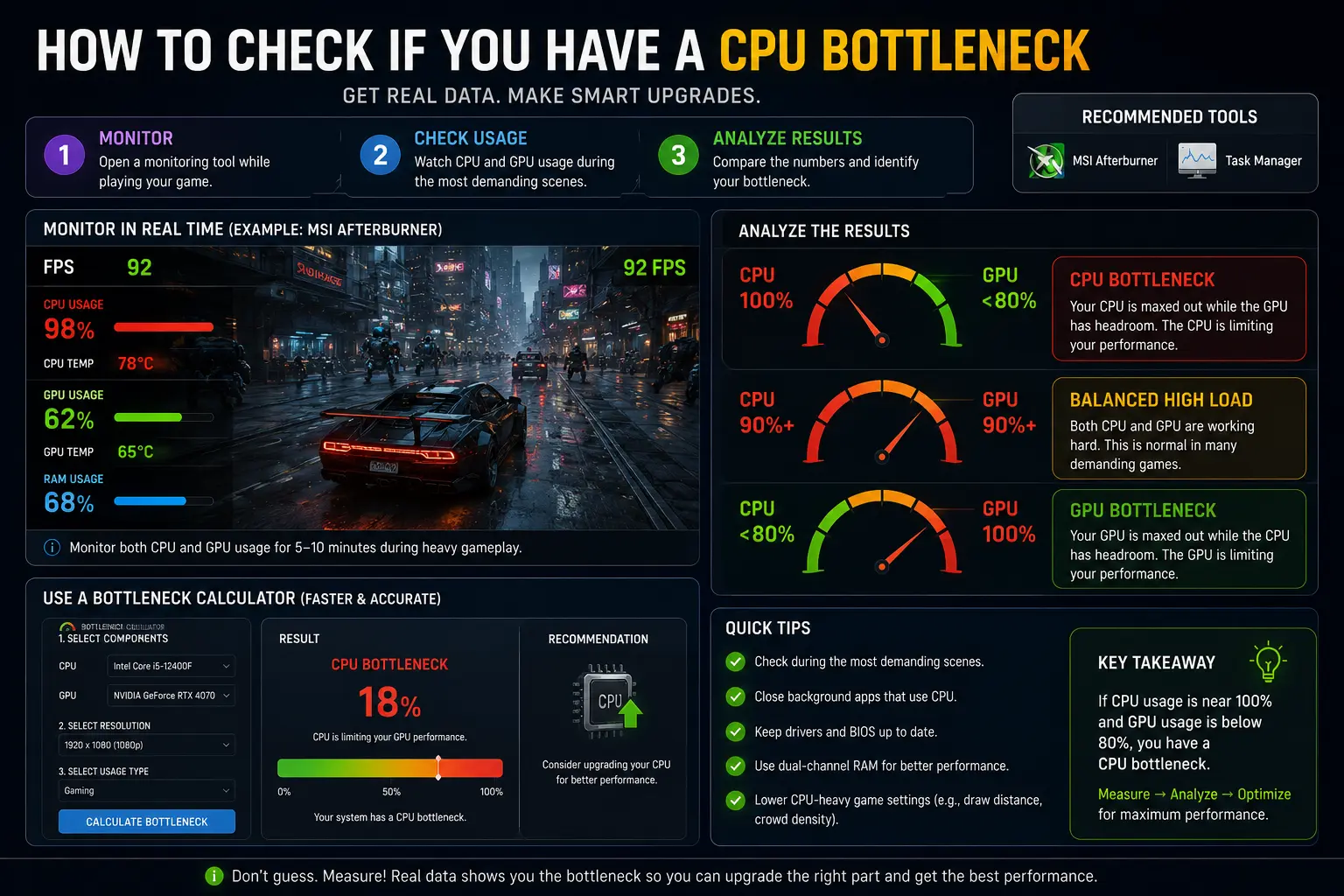
For a faster and more complete picture, use our free Bottleneck Calculator to check your exact CPU and GPU combination. Enter your components, select your resolution and usage type, and the tool gives you an instant bottleneck percentage so you know exactly where you stand before making any changes.
How to Fix a CPU Bottleneck (Start Free, Hardware Last)
Work through these in order. Most cases get resolved before you need to spend anything.
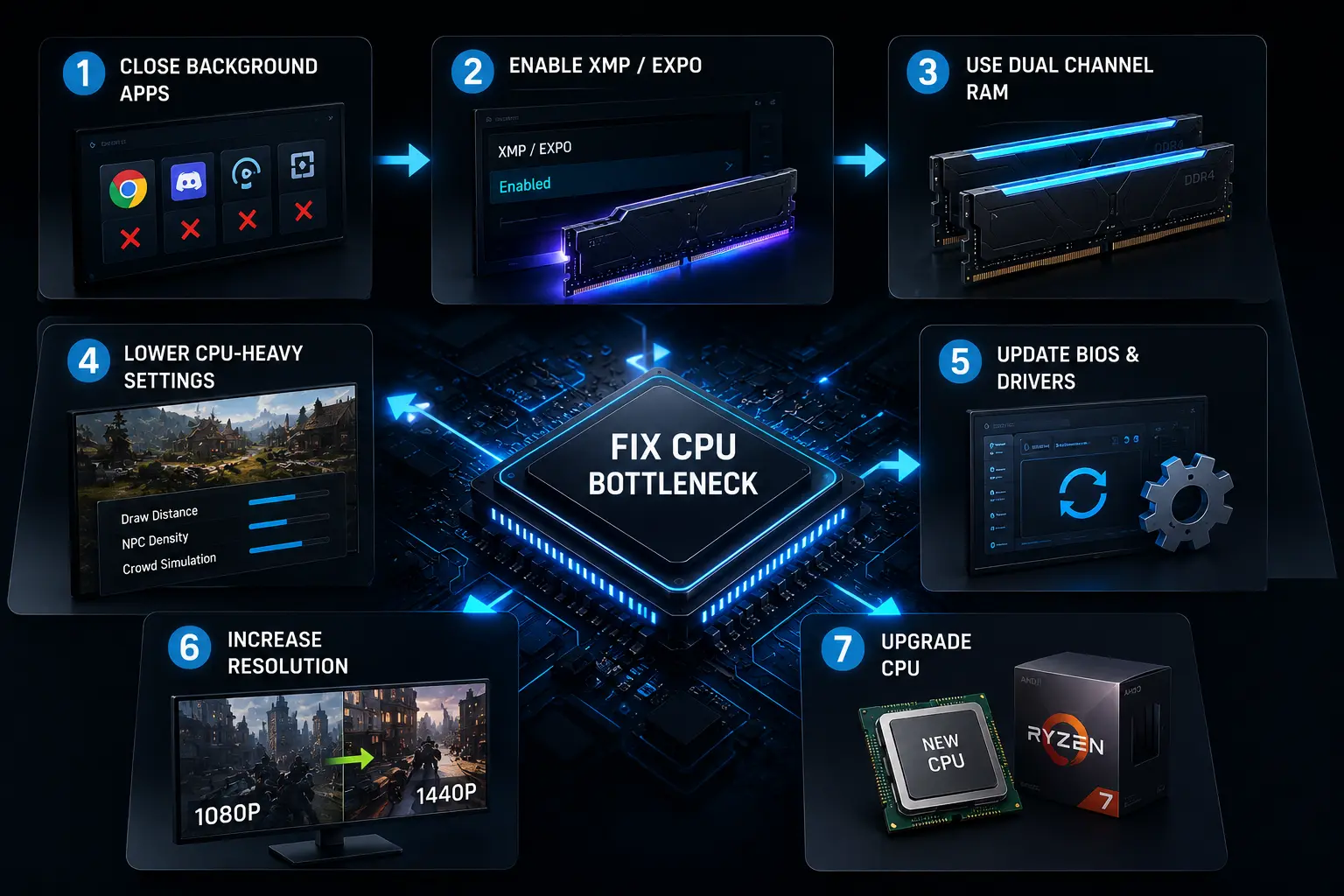
1-Close background applications before gaming:
Kill Chrome, Discord, streaming software, and any startup apps you do not need. This alone frees up meaningful CPU headroom at zero cost.
2-Enable XMP or EXPO in your BIOS for RAM:
On a test bench with a Ryzen 5 2600 and RTX 3060, enabling XMP moved RAM from 2133 MHz to 3200 MHz, pushing average FPS in Cyberpunk 2077 at 1080p from 74 to 91 with no other change. This single BIOS toggle is consistently the first hardware-adjacent fix to try.
3-Install RAM in dual-channel mode:
If you are running a single stick, add a matching second stick. Dual-channel RAM dramatically improves the memory bandwidth available to the CPU during gameplay.
4-Lower CPU-heavy in-game settings:
Reduce draw distance, NPC density, and crowd simulation settings. These settings hit the processor hard while barely affecting GPU workload. Your game will feel smoother without looking much worse.
5-Update your BIOS and chipset drivers:
Check your motherboard manufacturer’s website for the latest firmware. BIOS updates often include CPU scheduling improvements that fix performance issues no hardware swap will address.
6-Increase resolution (temporarily):
Raising resolution shifts more load to the GPU, which can reduce the relative strain on the CPU. This is a diagnostic trick more than a permanent fix, but it helps identify whether the processor is truly the limit.
7-Upgrade the CPU:
If you have worked through every free fix and the CPU bottleneck persists, a processor upgrade is the right call. Check your motherboard socket first — AM4 and LGA1700 platforms often support same-socket CPU swaps without replacing the board, which saves significant money.
Is a CPU Bottleneck Always a Problem?
Not necessarily. A 10–20% bottleneck is completely normal and rarely noticeable in real gameplay. Chasing perfect balance often leads to unnecessary upgrades with minimal real-world benefit. Every system has a bottleneck somewhere. The goal is not to eliminate it entirely but to keep it within a range where it does not affect your experience.
A small CPU bottleneck at 1080p may disappear entirely at 1440p or 4K because higher resolution pushes more work to the GPU, balancing the load naturally.
Final Thoughts
A CPU bottleneck is one of the most misdiagnosed problems in PC gaming. People buy new GPUs expecting massive performance gains, only to find the same stutters because the processor was the actual limit all along. The fix is usually simpler and cheaper than you think — start with your BIOS settings, your RAM configuration, and your background apps before spending anything.
Not sure where your system stands? Run your components through our free Bottleneck Calculator and get your exact bottleneck percentage in seconds. One number changes every decision that follows.