
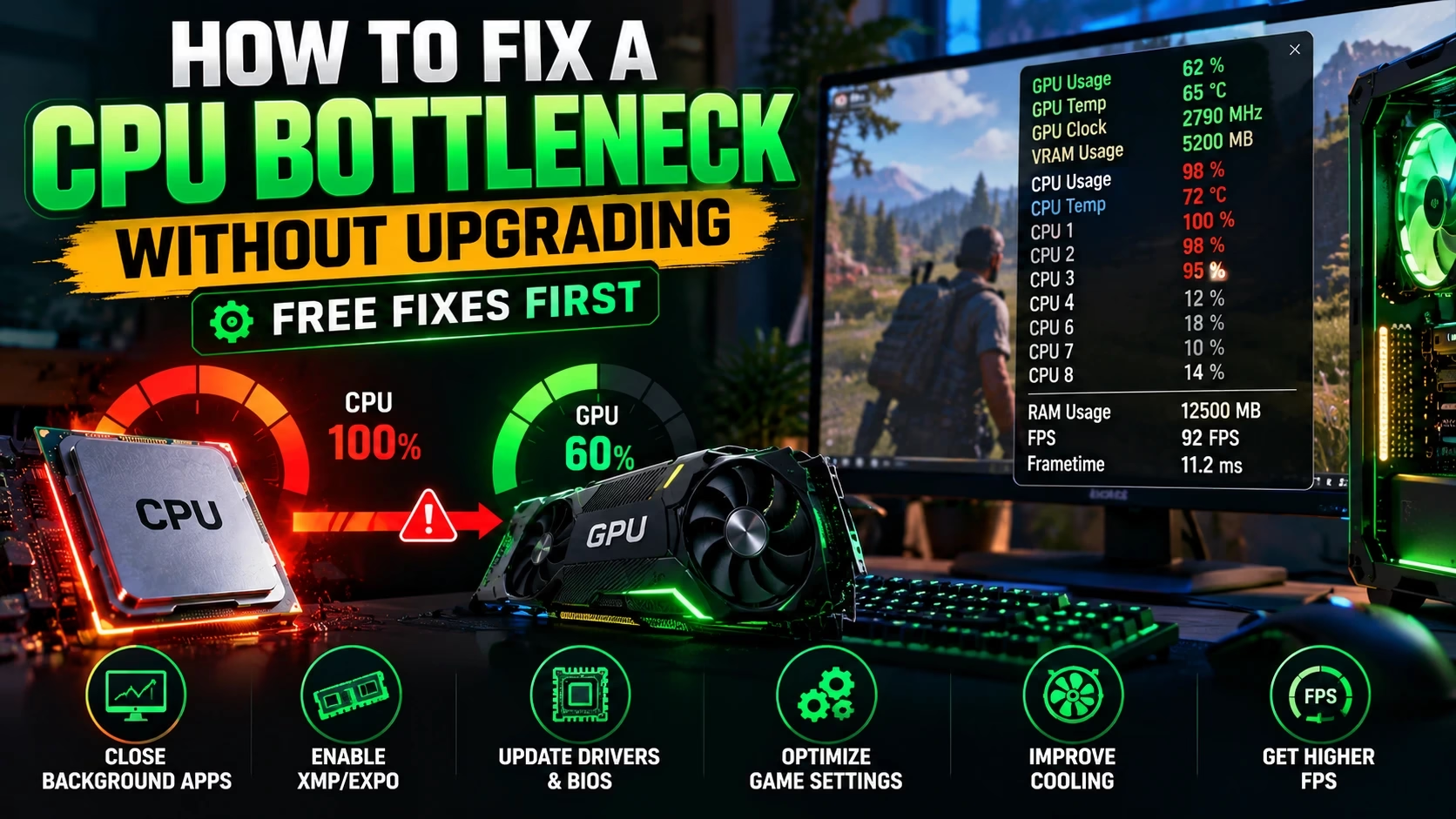
How to Fix CPU Bottleneck Without Upgrading (Free Fixes First)
The short answer
Yes — most CPU bottlenecks can be reduced without buying a new processor. The fix starts with confirming the CPU is really the limit: run a game with an overlay for two minutes and watch GPU usage plus per-core CPU usage. If the GPU sits well under 95% while one or more CPU cores are pinned near 100%, the CPU is the limit. From there, the free fixes in order are: close background apps, enable your RAM’s XMP/EXPO profile, make sure RAM runs in dual-channel, update BIOS and chipset drivers, and lower the CPU-heavy settings (draw distance, crowd density, physics) instead of the GPU ones. Only consider a new CPU if all of that still leaves you below your target frame rate.
A CPU bottleneck means your processor cannot prepare frames fast enough, so your graphics card ends up waiting for work. The good news is that in a surprising number of cases the “weak CPU” is actually a fixable problem: a background app stealing cores, RAM running at half its rated speed, an FPS cap hiding the real limit, or the CPU thermal-throttling under a dusty cooler. This guide walks through how to tell which of those is yours, and how to fix each one for free — upgrade last, never first.
Step 1: Confirm the CPU is really the limit (2 minutes)
Never start fixing until you have proof. Many players misdiagnose their bottleneck because they look at the wrong numbers — and the “fix” they apply then does nothing. Two quick tests give you the truth.
The overlay test
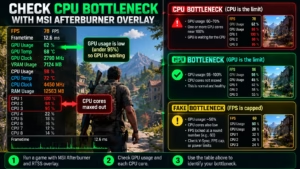
Play the game that feels slow for at least 30 seconds with a monitoring overlay running. MSI Afterburner with RTSS is the classic choice; CapFrameX or Intel’s free PresentMon work too — this in-depth diagnose guide from wccftech walks through the same overlay-first approach with CapFrameX and PresentMon. Watch two numbers:
- Total GPU usage. Healthy is 95–100% in a demanding scene.
- Per-core CPU usage — not the overall CPU average. Most games hammer a few threads, so the overall percentage can read 45% while two cores are maxed out. Always expand the overlay to show individual cores.
| What you see | What it means |
|---|---|
| GPU at 95–100%, CPU cores comfortable | GPU is the limit. This is the healthy, normal state — you are getting full value from your CPU. |
| GPU at 60–70%, one or two CPU cores at ~100% | CPU is the limit. The GPU is waiting on the processor. This is what the rest of this guide fixes. |
| GPU at ~50%, CPU cores also low, FPS stuck at a round number | A fake limit. Something is capping your frame rate — V-Sync, an in-game FPS cap, or a power/thermal limit. See the next section before touching anything else. |
The pattern matters more than the exact percentages. A single snapshot can lie; a 30-second run in a busy scene tells the truth. If you are unsure how your numbers map to a real verdict, run your exact pairing through our free Bottleneck Calculator for a starting estimate — then confirm it with this overlay test, because real in-game behavior beats any estimate. Our accuracy guide explains why calculator percentages are estimates, not measurements.
The resolution test
Raise your game’s resolution one step (or switch your upscaler to a heavier quality mode) and watch FPS:
- FPS stays about the same → the CPU is the limit. The GPU was already waiting, so giving it more work per frame changed nothing.
- FPS falls noticeably → the GPU was closer to the limit than you thought. The problem may be GPU-side after all.
This works because the CPU does roughly the same work per frame regardless of resolution — it is the GPU that works harder at 1440p than 1080p. A Ryzen 5 5600X paired with an RTX 5080, for example, shows a strong CPU limit at 1080p that nearly disappears at 4K, simply because each frame takes the GPU long enough to finish that the CPU stops being the constraint (measured across resolutions in TechBenchPro’s 2026 guide).
Rule out fake bottlenecks first
Before you change a single setting, eliminate the impostors. These are the most common reason people “fix” a CPU bottleneck that was never there:
- FPS caps and V-Sync. Any frame limiter — in-game, driver-level, or RTSS — makes the GPU look underused because it is literally being told to wait. Temporarily disable all caps, retest uncapped, and only then judge the real limit. You can re-apply a smarter cap later (see fix 6).
- Thermal throttling. A CPU hitting 95–100°C drops its clocks to protect itself. In the overlay, this looks like pinned cores at suspiciously low clock speeds. Check temperatures before blaming the silicon.
- Power plan and laptop limits. Windows on “Power saver,” or a laptop running on battery, can cap the CPU far below its rated speed. Use Balanced or High Performance, and game plugged in.
- Background updates. A Windows update, game download, or antivirus scan running mid-test steals the same cores the game needs. Let them finish, then retest.
Free fixes that reduce CPU load — in the order to try them
Each fix below is free and takes minutes. Work through them in order and retest after each one; stop when your frame rate and frame pacing are where you want them. (A similar free-first checklist appears in BottleneckCheck’s 2026 fix guide — the steps below go deeper on diagnosis and ordering.)
1. Close background apps and stop launchers updating
Browser tabs, game launchers auto-updating, Discord overlays, RGB control apps, and recording software all compete for the same CPU cores your game needs. Open Task Manager (Ctrl + Shift + Esc), sort the Processes tab by CPU, and end the tasks you recognize and do not need — never end unfamiliar Windows, security, or driver processes. Then open the Startup apps tab and disable nonessential programs so the problem does not return every boot. On a CPU-limited system this alone can recover a meaningful chunk of headroom, sometimes 10% or more.
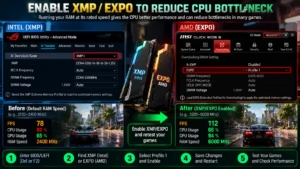
2. Enable XMP/EXPO so your RAM runs at rated speed
This is the single most common hidden CPU bottleneck on desktop PCs. Memory kits ship running at slow JEDEC baseline speeds — 2133 or 2400 MT/s for DDR4, 4800 MT/s for DDR5 — unless you enable the rated profile in BIOS. Restart into BIOS, find the memory section, and toggle on XMP (Intel) or EXPO (AMD). On Ryzen platforms especially, running RAM at its rated speed rather than the default measurably improves CPU-limited frame rates. Verify afterwards in Task Manager under Performance → Memory, or in CPU-Z: if the reported speed now matches the number printed on your kit, you are done.
3. Fix single-channel RAM
If you have two memory sticks, they must sit in the motherboard’s recommended slots — usually slots 2 and 4 (A2/B2) — to run in dual-channel mode. Two sticks in the wrong slots, or a single stick, halves your memory bandwidth, and a starved memory subsystem looks exactly like a weak CPU in games. Check in CPU-Z under the Memory tab (“Channels #”), and move the sticks if it reads Single. It costs nothing and takes two minutes with the PC off.
4. Update BIOS, chipset drivers, and GPU drivers
Outdated BIOS and chipset drivers prevent the CPU from boosting and scheduling work the way the manufacturer intended — bugs and inefficiencies in old versions create exactly the stutter and low frame rates people blame on old hardware. Download the latest BIOS and chipset drivers from your motherboard maker’s support page (and AMD’s or Intel’s driver pages for chipset software), and keep the GPU driver current too. If frame pacing has been erratic for a while, do one clean GPU driver install with DDU rather than stacking updates on top of each other.
5. Lower the CPU-heavy settings, not the GPU ones
This is the fix most people get backwards. Lowering texture quality or shadows will not help a CPU bottleneck — those mostly load the GPU. You need to turn down the settings that create work for the processor: every extra object, NPC, and physics calculation is a draw call and a simulation step the CPU must finish before the GPU can draw the frame.
| Lower these (CPU-heavy) | Keep these (mostly GPU-heavy) |
|---|---|
| Draw / view distance, object density, LOD | Texture quality |
| Crowd / NPC density, traffic variety | Anti-aliasing (mostly) |
| Physics quality: particles, debris, cloth | Post-processing effects |
| Shadow quality (in some engines, CPU-side object work) | Resolution (see the balance trick below) |
| Ray / path tracing (adds CPU-side scene management, draw calls, BVH work) | Upscaling quality (helps GPU limits, not CPU ones) |
| Simulation quality (strategy / city builders) | Ambient occlusion (mostly) |
In open-world games, dropping draw distance from Ultra to High alone can free up a tenth or more of CPU headroom, and lowering crowd density in a busy city scene is often the difference between smooth and stuttery. Keep textures and anti-aliasing high — they cost you almost nothing on the CPU side and keep the game looking good.
A related note: temporal upscalers like DLSS, FSR, and XeSS are excellent at lifting GPU-limited performance, but they do not fix a CPU bottleneck — if the CPU cannot prepare frames fast enough, rendering them faster changes nothing.
For the GPU side of this equation — what a GPU bottleneck looks like and how its fixes differ — see our GPU bottleneck guide and the CPU bottleneck signs guide.
6. Cap FPS slightly below what the CPU can hold
This sounds backwards, but a smart cap helps a CPU-limited system. Uncapped frame rates let the CPU swing wildly — 115 FPS one second, 70 the next — and those swings are the stutter you feel. Use RTSS or your GPU control panel to cap the frame rate a little below your system’s average in the game (for example, cap at 80 if you swing between 70 and 115). A frame rate the CPU can always hold gives smoother frame pacing than wild swings, and it frees CPU headroom for background tasks. Important: test uncapped first so you know the true limit, then cap. A cap you set before diagnosing is one of the fake bottlenecks from Step 1.
7. Windows tuning: power plan, Game Mode, GPU scheduling
- Set the Windows power plan to Balanced or High Performance — never Power saver while gaming.
- Enable Game Mode in Windows Settings so background activity is deprioritized while you play.
- Enable Hardware-accelerated GPU scheduling (HAGS) in Display → Graphics settings on Windows 10/11; it lets the GPU manage its own memory scheduling and can trim CPU overhead.
- Keep Windows itself updated — scheduler fixes for newer CPUs arrive through updates.
8. Check cooling and thermal throttling
If the overlay shows CPU cores pinned but clock speeds well below the chip’s rated boost, the CPU is not weak — it is hot. Check temperatures under load: sustained 90°C+ on desktop, or a laptop screaming its fans, means the cooler cannot keep up. Clean dust from fans and heatsinks, verify the cooler is mounted firmly, replace dried-out thermal paste on older builds, and make sure the case has actual airflow (intake and exhaust, not a sealed box). Laptops benefit from a cooling pad and from being used plugged in with the vendor’s performance profile enabled.
The balance trick: shift work to the GPU instead
Sometimes you cannot make the CPU faster — so make the GPU work harder instead. Raising the resolution one step, enabling DSR/DLDSR (Nvidia) or VSR (AMD) to render above native, or cranking GPU-only settings like 16x anisotropic filtering pulls the GPU up toward full utilization. This will not raise your FPS — the CPU limit is still the ceiling — but it evens out the workload, can smooth out frame pacing, and stops the system from sitting in an ugly half-idle state. It is most useful at 1080p high-refresh, where the CPU is the limit simply because the GPU finishes frames so quickly.
Overclocking: the risky free fix
If your CPU is unlocked (K-series Intel, most Ryzen) and your cooling has real headroom, a modest overclock — even 10–15% — narrows the gap to the GPU and meaningfully improves frame times in CPU-limited scenes. Treat this as the last free option, not the first: stress-test for stability, watch temperatures, and back off at the first crash. A stable stock CPU always beats an unstable overclocked one.
When a CPU upgrade is actually justified
Buy a new processor only after the free fixes are done and the evidence still says the CPU is the limit: per-core usage stays pinned, temperatures and clocks are healthy, and FPS is still below your target in the games you actually play. Two rules keep the purchase smart:
- Check your socket first. AM4 owners often have an excellent in-socket upgrade — an X3D chip drops into the same board and RAM and transforms CPU-limited gaming. AM5 and LGA1700 owners should price a drop-in CPU against a full platform change before deciding.
- Upgrade the limiting part. A faster GPU paired with the same struggling CPU will wait on the same cores and your FPS will barely move at 1080p. Spend the money where the bottleneck is.
And before you buy anything, run the new pairing through the Bottleneck Calculator at your actual resolution — a quick estimate now is cheaper than the wrong box arriving later.
Frequently asked questions
Can you fix a CPU bottleneck without upgrading?
Often, yes. Background apps stealing CPU cores, RAM running at slow default speeds, single-channel memory, outdated drivers, and CPU-heavy game settings account for a large share of CPU limits — and every one of them is free to fix. A genuine hardware upgrade is only needed when the CPU is simply too slow for the frame rate you want after all free fixes are applied.
Does lowering graphics settings help a CPU bottleneck?
Only the CPU-heavy ones: draw distance, crowd/NPC density, physics and particle effects, simulation quality, and ray tracing. Lowering texture quality, anti-aliasing, or post-processing mostly helps the GPU and will barely move a CPU limit.
Will a better GPU fix a CPU bottleneck?
No. A faster GPU will wait on the same CPU cores, so your FPS will stay roughly the same — especially at 1080p. Upgrade the limiting component, or rebalance the pairing.
Is a CPU bottleneck bad for your PC?
No. A bottleneck is a performance limit, not a physical risk. It caps your frame rate and can cause stutter, but it does not damage the CPU, GPU, or any other component.
Does RAM speed affect a CPU bottleneck?
Yes — more than most people expect. A kit left at its slow default speed instead of its rated XMP/EXPO profile, or two sticks running in single-channel because they are in the wrong slots, can cost real FPS on CPU-limited systems. Both fixes are free and take minutes.
Why is my GPU usage low but my FPS still bad?
Check for fake limits first: an FPS cap or V-Sync holding the GPU back, thermal throttling dropping CPU clocks, a Windows power plan on Power saver, or a background update eating cores. Re-test with caps disabled and temperatures in view before concluding the CPU is the problem.
Should I upgrade my CPU or GPU first?
Upgrade whichever one is actually limiting you. If monitoring shows the GPU at 95–100% while the CPU has headroom, upgrade the GPU. If the GPU sits at 60–70% with CPU cores pinned, upgrade the CPU. Guessing wrong is the most expensive mistake in PC building.
The bottom line: confirm the limit with the 2-minute test, work the free fixes in order, and let the evidence — not a forum post or a single percentage — decide whether you spend anything. Run your pair through the free Bottleneck Calculator, do the overlay test, and fix what is actually broken.
