Are Bottleneck Calculators Accurate? The Honest Truth (2026)
You picked a GPU. You typed both into a bottleneck calculator, and it gave you a number — say 17% CPU bottleneck. Now you’re worried. Is your build bad? Did you waste money? Should you return a part?
This skepticism isn’t just ours — hardware forums are full of users questioning these percentages. Here’s the direct answer up front.
The Short Answer
Bottleneck calculators are roughly accurate for spotting obvious CPU-GPU mismatches before you buy, but they are not precise measurements. They estimate from benchmark scores and cannot account for your specific games, resolution, settings, RAM, drivers, or cooling. Treat the percentage as a starting guess — then confirm what’s really happening with a free monitoring tool like MSI Afterburner, which takes about 15 minutes.
If you want the one-line version: no calculator is perfectly accurate, but a good one tells you whether your parts are in the same league. It cannot tell you your real FPS.
Estimated bottleneck: the percentage a calculator outputs. It is a prediction built from benchmark scores — no game is ever launched and nothing on your PC is measured.
Measured bottleneck: what monitoring tools observe on your actual system while you play — real GPU/CPU utilization, frame times, and temperatures. This is the only bottleneck that describes your PC, and it changes from game to game.
How Bottleneck Calculators Actually Work
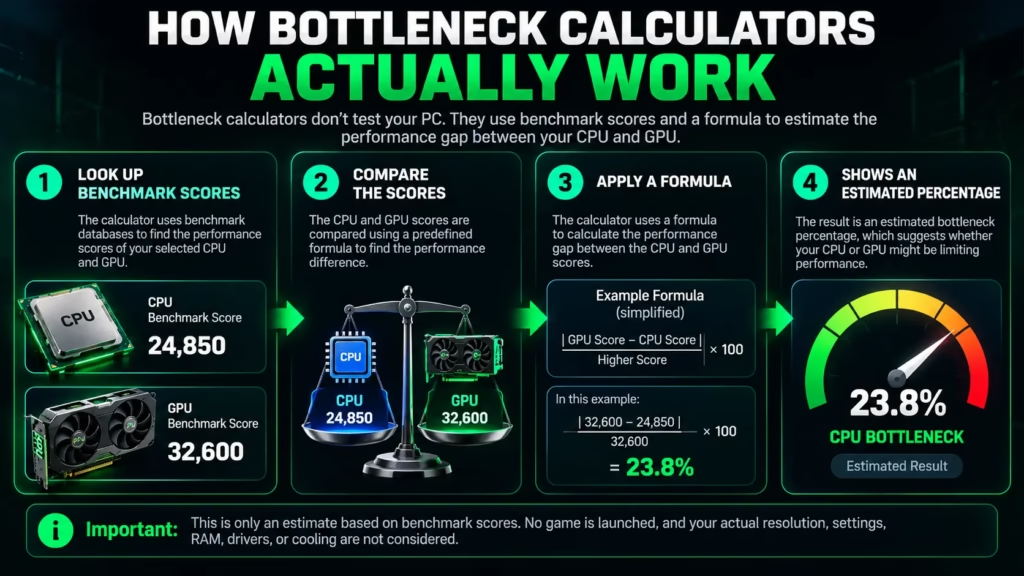
Most calculators don’t test your PC. They can’t — your PC doesn’t exist yet, or they’re running in a browser. Instead, they do something much simpler:
- They look up benchmark scores for your CPU and GPU (from databases of test results).
- They compare the two scores with a formula.
- They output a percentage describing the gap.
That’s it. No game is launched. No frame is rendered. Your resolution, your settings, your RAM, your drivers — none of that is in the equation, because the calculator doesn’t know any of it.
This isn’t a scam. It’s a shortcut. And like all shortcuts, it works in some situations and fails in others. The rest of this guide shows you exactly which is which.
Why Two Calculators Give Different Numbers for the Same PC
Type the same CPU and GPU into three different bottleneck calculators and you’ll often get three different percentages — say 8%, 17%, and 24%. This confuses everyone, but the reason is simple: there is no standard definition of “bottleneck percentage.”
Each site invented its own formula. They use different benchmark databases, weigh CPU and GPU scores differently, and make different assumptions about resolution and workload. The numbers aren’t disagreeing about your PC — they’re doing different arithmetic. Comparing percentages across tools is meaningless.
The Precision Illusion: Why “13.7%” Means Nothing
When a calculator reports a “13.7% CPU bottleneck,” that decimal point is doing marketing work, not math work. The underlying model — two benchmark scores pushed through a ratio — cannot support that level of precision. A result of 13.7% and a result of 18% describe the same reality: a mild imbalance you probably can’t feel.
Be especially skeptical of any tool advertising “99.99% accurate diagnostic results.” No benchmark methodology on earth can back that claim for a system it has never measured. This is why experienced hardware reviewers avoid basing buying decisions on these tools — PCWorld’s hardware team notes their calculations are too simplistic to capture real-world variables like drivers, software, and workload differences.
What Bottleneck Calculators Get Right
Calculators are genuinely useful in one scenario: catching obvious mismatches before you spend money.
Pairing a 10-year-old quad-core CPU with a brand-new RTX 5070 is a real problem, and a calculator will flag it instantly. In clear cases like that, the exact percentage doesn’t matter — the warning does. For a beginner who finds PC hardware confusing, that two-minute sanity check has real value.
They’re also useful for comparing upgrade options against each other. If you’re choosing between two CPUs to pair with your current GPU, running both through the same calculator gives you a rough relative comparison — even if the absolute numbers are fuzzy.
7 Blind Spots No Calculator Accounts For
Here’s where calculators fall apart. Each of these can flip your real-world result completely, and no calculator accounts for them properly.
1. Your Games
A calculator gives you one number for your whole PC. But bottlenecks are per-game, not per-PC. A CPU-heavy strategy game and a GPU-heavy ray-traced shooter stress completely different parts of your system. Your CPU might bottleneck in one title and be totally relaxed in another — on the same hardware, on the same day. One number cannot describe both.
2. Your Resolution and Settings
This is the biggest blind spot. At 1080p, your GPU finishes frames quickly, so the CPU has to work harder to keep up — CPU bottlenecks show up most here. At 4K, each frame takes the GPU so long that even a mid-range CPU usually keeps pace. The same parts can show a 20% CPU bottleneck at 1080p and almost none at 4K. The hardware didn’t change. The workload did. Most calculators either assume one resolution or handle it crudely. Real-world testing confirms how dramatic this shift is: Digital Trends benchmarked an RTX 3090 with two different CPUs and found only a 1.2% FPS difference at 4K, but a 15.6% difference at 1080p in the same game — the CPU only mattered once the GPU stopped being the limit. (Source: Digital Trends)
3. DLSS, FSR, and Frame Generation
Modern upscaling breaks the calculator model entirely, and almost no calculator accounts for it. DLSS, FSR, and XeSS render your game at a lower internal resolution and reconstruct it upward — which dramatically reduces GPU load. Enabling DLSS Quality can convert a GPU bottleneck into a CPU bottleneck on the same PC, because the GPU now finishes frames faster than the CPU can feed it. Frame generation muddies the picture further. A calculator that only knows your CPU model, GPU model, and resolution has no idea whether you’re running native 4K or DLSS Performance — and those are radically different loads.
4. RAM Speed and Configuration
Slow RAM, too little RAM, or RAM running in single-channel mode can cause stuttering that looks exactly like a CPU or GPU problem. On AMD Ryzen systems, RAM speed matters even more because of how the chip architecture works. Most calculators ignore RAM entirely. (We cover this in depth in our RAM bottleneck guide.)
5. Drivers and Background Apps
A bad GPU driver can destroy your FPS and look exactly like a hardware bottleneck — but it costs nothing to fix. Background apps (browsers, launchers, recording software, antivirus scans) compete with your game for CPU time. A calculator knows nothing about your software.
6. Thermals and Throttling
When your CPU or GPU gets too hot, it slows itself down to survive. This thermal throttling can make a fast CPU perform like a slow one, creating what looks like a bottleneck but is really a cooling problem. Clean the dust, fix the airflow, and the “bottleneck” disappears. No calculator knows your temperatures.
7. Laptops and High-Refresh Targets
The same GPU name on a laptop can be far weaker than its desktop version — different power limits, different cooling, different performance. Two laptops with the “same” GPU can perform very differently. Calculators are unreliable for laptops; look for reviews of your exact model instead. Similarly, a system that looks balanced for 60Hz gaming might not feed 240Hz in competitive titles — calculators rarely model refresh-rate targets.
Bottleneck Percentage Guide: What the Number Really Means
If a calculator gives you a percentage, here’s how to read it — with the crucial correction most sites skip.
| Bottleneck % | What it means | What to do |
|---|---|---|
| 0–10% | Balanced — normal variance between parts | Nothing. Enjoy your PC. |
| 10–20% | Mild — noticeable in some titles | Adjust settings first; rarely worth money |
| 20–30% | Moderate — real mismatch in demanding games | Check real benchmarks before spending |
| 30%+ | Severe — one part clearly holding the other back | A targeted upgrade will show real gains |
The correction: a 20% bottleneck does NOT mean you lose 20% of your FPS. It means the calculator estimates one part is limiting the other by roughly that amount. Your real FPS loss could be more, less, or almost nothing. And remember — every PC is bottlenecked by something at all times. A perfectly balanced 0% system does not exist. A small imbalance you can’t feel is not a problem to solve.
Myth: “A high bottleneck percentage means your PC is broken.” Fact: some imbalance exists in every build ever made. A small gap — especially under 10% — isn’t damage or a defect. It’s just how hardware works.
Myth: “The percentage equals your FPS loss.” Fact: the percentage estimates imbalance, not lost frames. Real FPS depends on the game, settings, and resolution.
Myth: “If two calculators disagree, one is lying.” Fact: neither is lying. Different formulas, different data, different assumptions — the numbers were never comparable.
Myth: “0% bottleneck is the goal.” Fact: chasing 0% wastes money. A slight GPU bottleneck (GPU at 95–100% while the CPU has headroom) is actually the ideal gaming state.
Myth: “You need a new result after every driver update.” Fact: drivers and settings change real performance far more than any calculator update. Measure with monitoring tools instead.
How to Verify Your Real Bottleneck in 15 Minutes
If your PC is already built, stop guessing. Measure it. If you want to know how to identify a PC bottleneck on your own system, real-time monitoring is the reliable method — this is what every honest guide, including ours, recommends over any calculator number.
- Step 1: Pick the game that feels slow. Test the one that gives you trouble, not an easy one.
- Step 2: Use your normal settings. Test at the resolution and quality you actually play at.
- Step 3: Install MSI Afterburner with RTSS (both free). Enable the on-screen display for GPU usage, per-core CPU usage, temperatures, FPS, and frame time.
- Step 4: Play for 10–15 minutes in demanding scenes — big fights, open-world areas, crowded cities. That’s where limits show up.
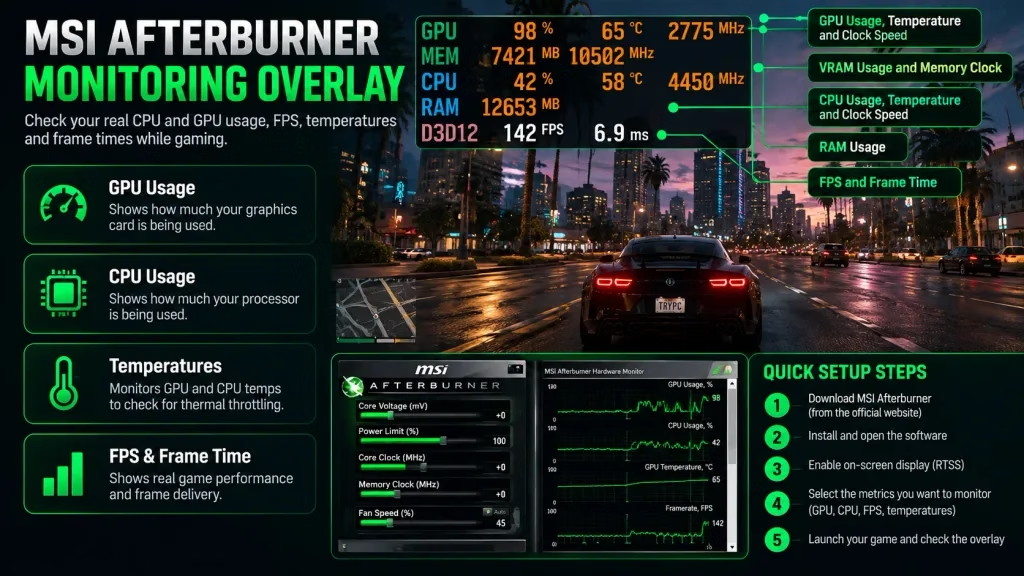
- Step 5: Read the overlay. GPU pinned at 95–100% with the CPU relaxed? You’re GPU-limited — that’s normal and healthy. GPU well below 90% while one or more CPU cores are maxed out? You’re CPU-limited. (Check per-core usage, not just the total — one maxed core hides inside a 50% total.)
- Step 6: Confirm with the settings test. Lower your graphics settings: if FPS jumps, the GPU was the limit. If FPS barely moves, the CPU was. Raise resolution instead: if FPS drops hard, GPU-bound; if it barely changes, CPU-bound.
- Step 7: Check the impostors. Before blaming hardware, glance at RAM usage (full = stutter), VRAM usage, temperatures with HWiNFO (throttling fakes bottlenecks), and driver versions.
Want a starting estimate first? Run your exact CPU and GPU through our free bottleneck calculator on the homepage — then verify with the steps above.
Using Calculators the Right Way
Are Bottleneck Calculators Accurate Enough for Upgrade Decisions?
Questions about bottleneck calculator accuracy usually come down to this: for upgrade decisions, treat the calculator as a first filter, not a verdict. If it flags a severe mismatch, that is worth investigating with real benchmarks — but the final call should come from monitoring your own system and checking game-specific benchmarks, not from the percentage alone.
Trust the calculator when: you’re planning a build and want a two-minute sanity check; you’re comparing two upgrade options against each other; the result shows a severe mismatch (30%+) worth investigating with real benchmarks.
Ignore it when: the number looks scary but real benchmarks for your parts show good results; you’re trying to predict exact FPS in a specific game; you’re on a laptop; you’re diagnosing stutters (check RAM, temps, VRAM, and drivers first); you’re chasing a “perfect” 0%.
The rule: calculators help you avoid mistakes before spending money. Monitoring tools tell you the truth after. And a genuinely useful calculator would ask more than just your CPU and GPU — it would ask your resolution and refresh rate, which games you play, whether you use DLSS or FSR, your RAM setup, and whether it’s a desktop or laptop. If a tool doesn’t ask these, its answer can’t include them.
Frequently Asked Questions
Can a bottleneck calculator predict my FPS?
No. It estimates hardware balance from benchmark scores; it cannot predict FPS in a specific game. For FPS expectations, look up benchmarks of your exact CPU, GPU, game, and resolution instead.
Why do two bottleneck calculators show different results?
Because there is no standard formula. Each site uses its own benchmark data, weighting, and assumptions, so the percentages aren’t comparable across tools. Use one tool consistently if you compare options.
What is a good bottleneck percentage?
Under 10% is balanced and needs no action. 10–20% is mild — adjust settings before spending money. Above 20–30%, check real benchmarks; a targeted upgrade may genuinely help. And a slight GPU-side bottleneck is the healthiest state for gaming.
Can a bottleneck calculator damage my PC?
The calculator itself is harmless — it’s just a webpage. The risk is acting on a scary number by buying parts you don’t need. Always verify with real monitoring before spending money.
Do bottleneck calculators work for laptops?
Not reliably. Laptop GPUs with the same name as desktop cards run at lower power with different cooling, and performance varies between laptop models. Find reviews of your exact laptop model instead.
Do these tools account for DLSS or FSR?
Almost never. Upscaling changes the GPU workload dramatically, which can flip a GPU bottleneck into a CPU bottleneck on identical hardware. If you play with DLSS/FSR enabled, treat calculator results as even rougher than usual.
Should I upgrade based on a calculator result alone?
No. Use it as a first filter, then confirm with MSI Afterburner while gaming and check benchmarks for your specific games. The best upgrade is the one your own measurements confirm — not the one a percentage suggests.
Is a 15% bottleneck bad?
Usually not. A 15% imbalance you can’t feel in actual gameplay is not worth spending money to fix. It only matters if your FPS or smoothness is below what you want in the games you play.
The Bottom Line
So, are bottleneck calculators accurate? Accurate enough to catch a bad pairing before you buy — but not accurate enough to predict your FPS or diagnose stutters. Think of these tools as honest estimators wearing a lab coat. They’ll catch a genuinely bad pairing before you buy, and that’s worth something. But the percentage is a guess built from benchmark scores, blind to your games, settings, upscaling, RAM, drivers, and thermals.
Use the calculator to plan. Use monitoring tools to know. And if you want that starting estimate right now, our free bottleneck calculator is on the homepage — run your parts through it, then verify with the 15-minute method above. That’s the workflow that actually works.