RAM Bottleneck: What It Is, Symptoms, Causes, and How to Fix It
Last Updated: August 2026 Author: PC Hardware Content Specialist — hands-on experience testing memory configurations, gaming performance, RAM settings, and system diagnostics. Focused on practical testing rather than relying on a single benchmark or spec sheet number.
TL;DR: A RAM bottleneck happens when memory capacity, bandwidth, speed, latency, or configuration limits a specific workload. High RAM usage alone does not prove RAM is the problem — check RAM usage, paging activity, CPU/GPU usage, and frame time together before upgrading. Use our RAM Bottleneck Calculator as a starting estimate, then confirm the result with real monitoring.
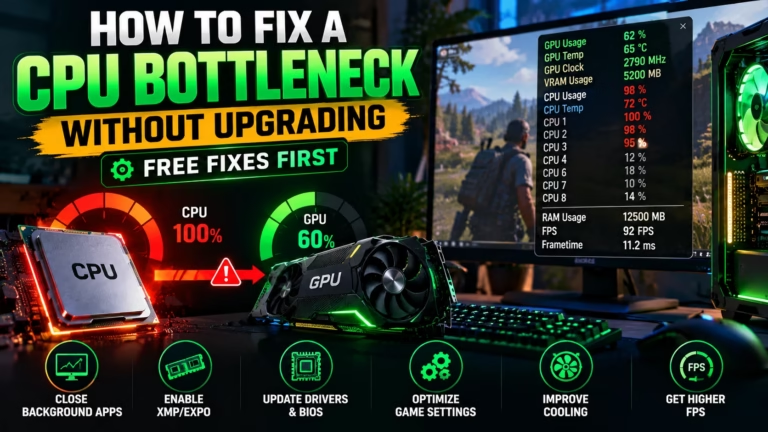
A fast CPU and a powerful GPU can’t always stop a PC from slowing down. If your system lacks sufficient memory, has an inadequate RAM configuration, or can’t provide enough bandwidth for a workload, RAM can become a performance bottleneck.
You might notice stuttering, FPS drops, slow application switching, or increased disk activity — but these same symptoms can also be caused by issues with the CPU, GPU, storage, drivers, temperatures, or background software. The reliable approach is to check several measurements together before spending money on new hardware.
What Is a RAM Bottleneck and How Does It Affect Your PC?
A RAM bottleneck occurs when system memory becomes a meaningful limit for a particular workload.
RAM (random access memory) temporarily stores data that Windows, applications, and the CPU need to access quickly. When available physical memory becomes insufficient, Windows uses the page file on storage to manage memory, and because storage is far slower than RAM, heavy paging can contribute to slowdowns and poor responsiveness. Microsoft explains this in its page file documentation.
There’s no single RAM usage percentage that proves a bottleneck. A PC showing 90% memory usage doesn’t automatically have a memory problem — available memory, committed memory, paging activity, CPU load, GPU load, and frame time all provide useful context together.
How RAM Affects Overall PC Performance
Think of RAM as your PC’s working space. A gaming PC might run a game, Windows, Chrome, Discord, a launcher, and recording software all at once — and every one of these uses memory. When the combined workload grows larger than available memory can comfortably handle, Windows manages memory more aggressively. Microsoft’s memory performance counters — visible through Task Manager — expose this data directly.
RAM speed matters too. Faster memory can provide more bandwidth, but the real performance gain depends on the CPU, motherboard, memory timings, and the specific application.
When Does RAM Actually Become a Bottleneck?
RAM becomes a meaningful limit when changing the memory configuration produces a measurable improvement in the workload you care about. – If a game repeatedly runs short of available memory and performance improves after going from 16GB to 32GB, capacity was likely contributing to the problem.
If capacity stays comfortable but performance changes after adjusting memory speed or timings, bandwidth or latency may be involved. – If changing RAM produces little or no measurable improvement, another component is more likely the real limit.
What Causes a RAM Bottleneck?
A memory limitation can come from several different factors, often at the same time.
Not Enough RAM Capacity
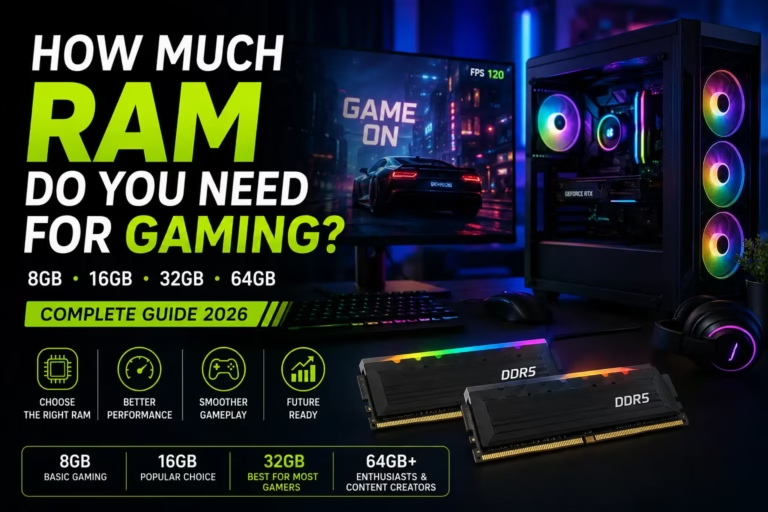
RAM capacity is the total physical memory installed in your PC. 8GB handles basic computing and light workloads. 16GB is a practical starting point for many gaming and everyday systems. 32GB provides more headroom for demanding gaming, multitasking, and content creation. There’s no universal capacity that’s correct for every user.
| RAM Size | Best For | Can It Bottleneck? | Recommendation |
|---|---|---|---|
| 8GB | Basic browsing, documents, light everyday use | Yes, especially with demanding applications | Entry level |
| 16GB | Gaming, study, office work, everyday multitasking | Yes, depending on workload | Good starting point |
| 32GB | Modern gaming, heavy multitasking, content creation | Less likely from capacity alone | Recommended for demanding users |
| 64GB | Professional editing, 3D work, development, large projects | Unlikely for most normal workloads | Buy only when your workload needs it |
This table is a practical guideline — your specific applications and workload should determine how much RAM you actually need
Slow RAM Speed and Limited Bandwidth
RAM speed affects how quickly data transfers between memory and the processor, but faster memory doesn’t produce the same gain in every application. Puget Systems testing found that the effect of RAM speed varies considerably between applications and processors, which is why buying the highest advertised frequency isn’t automatically the best upgrade.
Single Channel Memory
Memory channel configuration affects available bandwidth. A compatible two-module setup can provide more bandwidth than a single module on platforms designed for multiple channels, though the real difference depends on the CPU, RAM generation, motherboard, and workload. Recent DDR5 testing from Tom’s Hardware shows the impact of a single DIMM can vary significantly between processors and games. Integrated graphics are especially sensitive here, since they draw on system memory directly for graphics data.
Background Apps and High Memory Usage
Your game is rarely the only program using RAM. A browser with many tabs, Discord, a game launcher, screen recording software, and video editors can all consume memory before a demanding game even starts. Microsoft recommends reducing unnecessary background memory work — closing what you don’t need before testing gives you a cleaner, more accurate measurement.
RAM Configuration and Compatibility Issues
RAM installation isn’t just about picking the right number of gigabytes. Check: DDR generation, CPU memory support, motherboard support, module capacity, number of modules, memory channels, rated speed, timings, voltage, and BIOS support. AMD’s AM5 platform, for example, uses DDR5 with two memory channels — but exact supported configurations depend on the specific processor and motherboard. Mixing unrelated memory kits can create stability problems, particularly with aggressive memory profiles enabled.
What Are the Signs of a RAM Bottleneck?
Look for several symptoms together — never rely on one measurement alone.
Stuttering and Sudden FPS Drops
Insufficient memory can contribute to stuttering when a workload needs more physical memory than the system can comfortably provide. But stuttering can also come from CPU limits, GPU limits, storage activity, thermal throttling, drivers, shader compilation, or game engine behavior — so stuttering by itself is not proof of a RAM bottleneck.
High RAM Usage and Memory Pressure
High usage is a warning sign, not a final diagnosis. Open Task Manager → Performance → Memory, then reproduce the problem while watching memory usage in real time.

Low 1% and 0.1% FPS
Average FPS doesn’t tell the whole story — a game can show a high average while still feeling uneven because of short performance drops. Low 1% and 0.1% FPS figures, along with a frame time graph, reveal exactly when those drops happen.
Out of Memory Errors and Game Crashes
When the combined workload needs more memory than the system can provide, applications can become unstable or fail. Windows also has a system commit limit tied to physical memory and the page file — reaching it can cause freezing and crashes. An out-of-memory error doesn’t automatically mean you need more RAM, but it’s a strong reason to investigate memory usage.
Disk Activity Caused by Virtual Memory
Windows moves memory pages between physical memory and the page file on storage. High memory usage, increased paging, heavy disk activity, and stuttering appearing together make insufficient physical memory a stronger suspect — though disk activity alone isn’t proof, since game loading, Windows updates, and antivirus scans can cause it too.
Can RAM Bottleneck Your CPU or GPU?
Yes — but the relationship needs some explanation. RAM doesn’t simply make the CPU or GPU slower; memory limitations can prevent a workload from receiving or processing data efficiently.
Can RAM bottleneck a CPU?
Yes. A CPU can be affected by insufficient memory capacity, bandwidth, or latency in workloads that depend heavily on memory access. If you’re investigating a processor-specific limitation, see our CPU Bottleneck Calculator guide for a dedicated breakdown.
Can RAM bottleneck a GPU?
Yes, in some situations. Integrated graphics use system memory directly, so bandwidth has a direct effect. With a discrete GPU, system RAM can still affect the CPU side of a game — if the CPU can’t supply enough work, GPU utilization may stay below its potential.
RAM vs CPU vs GPU Bottlenecks
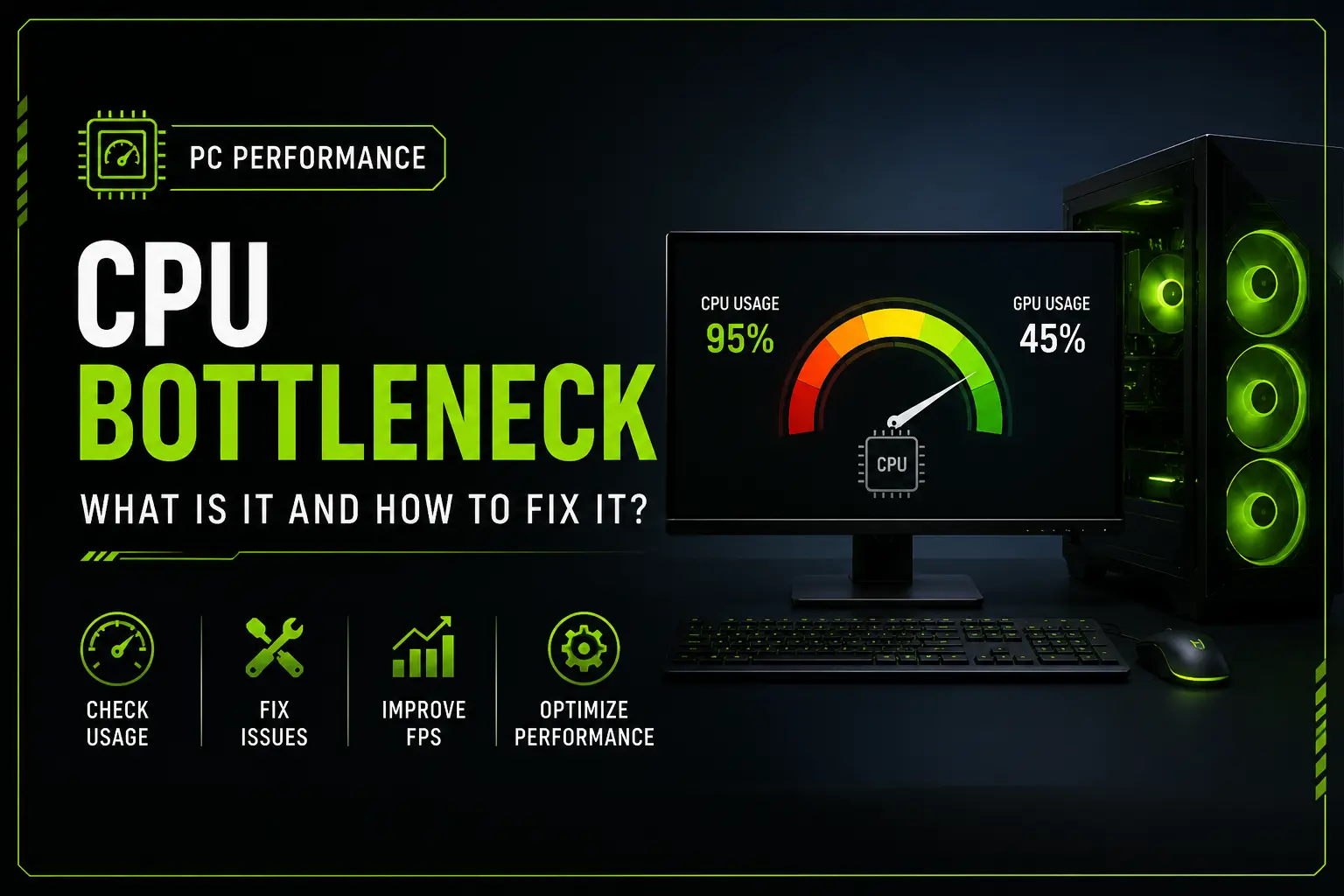
CPU bottleneck — the processor is the main performance constraint
GPU bottleneck — the graphics processor is the main performance constraint
RAM bottleneck — capacity, bandwidth, latency, or configuration contributes to the limitation.
Never diagnose from GPU usage alone — low GPU usage can come from CPU limits, memory behavior, frame caps, background applications, or game engine limits.
How to Check If RAM Is Bottlenecking Your PC
You can investigate most cases without buying anything.
1. Check RAM usage and available memory. Open Task Manager → Performance → Memory, start the problem application, and record installed memory, memory in use, available memory, memory speed, slots in use, and committed memory.
2. Monitor CPU and GPU usage together. Use Task Manager or MSI Afterburner to watch CPU usage, GPU usage, RAM usage, GPU memory, temperatures, FPS, and frame time — never diagnose from one screenshot or one percentage.
3. Check RAM speed and channel configuration. Confirm your RAM runs at its expected speed and configuration. On supported AMD systems, EXPO provides memory profiles for compatible DDR5 kits.
4. Compare performance before and after one controlled change. Keep the same game, scene, resolution, graphics settings, drivers, and background apps. A consistent improvement after a memory change is strong evidence RAM was contributing to the limitation.
How to Fix a RAM Bottleneck
Don’t buy more RAM immediately — identify the actual limitation first.
– Upgrade capacity when your workload repeatedly approaches available memory and paging becomes significant. Moving from 16GB to 32GB can add useful headroom for demanding gaming and multitasking; professional workloads can need considerably more.
– Use dual-channel memory with a configuration your motherboard manufacturer recommends — don’t assume any two random modules perform identically. A matched kit is generally the safer choice.
– Enable XMP or EXPO to run supported modules at their tested higher settings. Check your motherboard manual first, and return to a stable configuration if the system becomes unstable.
– Match compatible modules — DDR generation, motherboard/CPU support, capacity, module configuration, rated speed, timings, and voltage should all align.
– Close unnecessary background applications — the simplest test. If memory usage falls and performance improves, the background software is contributing to the demand.
How to Prevent Future RAM Bottlenecks
Choose RAM according to your actual workload, not the biggest kit on the shelf.
– Choose enough RAM for your workload. A student browsing and writing documents needs far less than a gamer, video editor, developer, or 3D artist. Gaming plus Chrome, Discord, and recording software demands more memory than basic browsing; video editing, development environments, and virtual machines can need substantially more.
– Use compatible modules that follow your CPU and motherboard’s specifications — not just the highest advertised frequency. Capacity, compatibility, configuration, latency, and stability all matter together.
– Keep background memory usage under control. Check which applications are using memory when your PC feels slow — a browser with dozens of tabs plus launchers and recording software can eat a large chunk of RAM before a demanding game even starts.
Still unsure whether RAM is limiting your PC? Try our free Bottleneck Calculator — enter your CPU, GPU, RAM capacity, and speed for a starting estimate, then confirm it with real performance monitoring. Estimate first. Verify with your PC.
A Practical Note for PC Buyers
If you’re buying or upgrading a PC from a local computer store, online retailer, or marketplace, don’t choose RAM based only on the number printed on the box.
Ask the seller directly:
“Is this a matched RAM kit, or is it a single module?”
Then verify the DDR generation, RAM capacity, rated speed, motherboard compatibility, number of modules, and actual configuration in BIOS or Windows.
For example, a single 16GB module and a compatible two module kit can behave differently depending on the CPU and motherboard. The right choice depends on your system configuration, not simply the price or advertised RAM speed.
Whether you’re buying from a local PC store, Amazon, Newegg, Best Buy, or another retailer, always check compatibility before you buy.
Frequently Asked Questions (FAQs)
Can RAM bottleneck your FPS?
Yes. Insufficient memory capacity or limited memory performance can affect FPS in some games. The actual effect depends on the game, CPU, GPU, memory configuration, and settings.
Is 16GB RAM a bottleneck?
Not automatically. 16GB is enough for many games and everyday workloads, but it can become limiting when the game and background applications together need more memory than the system can comfortably provide.
Is 32GB RAM overkill?
Not necessarily. For basic browsing and office work, 32GB may be more than needed. For modern gaming, multitasking, content creation, and demanding applications, it can provide useful headroom.
Is single channel RAM bad for gaming?
It can reduce available memory bandwidth on platforms designed for multiple channels, but the real performance difference depends on the CPU, memory generation, game, and platform.
Can RAM bottleneck your FPS even with a powerful GPU?
Yes. A powerful GPU can’t remove every other performance limitation. CPU workload, memory behavior, game engine limits, frame caps, and background applications can all prevent the GPU from reaching full utilization.
How do I know if RAM is the bottleneck?
Check RAM usage, available memory, committed memory, paging activity, RAM speed, channel configuration, CPU usage, GPU usage, FPS, and frame time together while reproducing the problem. One metric alone is never enough.
Does faster RAM reduce bottlenecks?
It can, but only when memory speed or bandwidth is actually limiting the workload. The benefit varies significantly between processors and applications.
How much RAM do I need in 2026?
There’s no single correct amount. 8GB suits basic computing. 16GB is a practical starting point for many gaming and everyday systems. 32GB helps with demanding gaming, multitasking, and content creation. 64GB or more makes sense only when professional applications or large projects can actually use the extra capacity. Choose based on your workload, not the largest kit available.